SmartLife App – How to Connect & Use Your Infrared Sauna
-
Download Smart Life (blue icon with a white house) from the App Store or Google Play.

-
Open the app and create/log into your account.
2. Put the Sauna in Pairing Mode
-
Press and hold the power button on the sauna control panel.
-
Wait until it beeps and the indicator light starts flashing.
-
Flashing light = ready to connect.
-
3. Add the Device in the App
-
Open Smart Life.
-
Tap “+ Add Device” in the top right corner.
-
The sauna should appear automatically.
-
Select the device.
4. Connect to Wi-Fi
-
Choose your 2.4GHz Wi-Fi network (important – it won’t connect to 5GHz).
-
Enter your Wi-Fi password.
-
Tap Next.
-
Wait for confirmation that the device has been added successfully.
-
Press Done.
You’re now connected.
Using the App – Control Panel Overview
Once inside the device:
1. Turn the Sauna On
-
Press “Infrared Sauna”.
-
This activates all heaters.
2. Temperature Control
-
The current temperature is displayed at the top.
-
Maximum setting: 90°C.
-
Recommended example: 60°C.
-
Higher isn’t always better — consistent, comfortable heat is more effective than extreme heat.
3. Timer
-
Adjustable up to 90 minutes.
-
Example setup:
-
If you want a 45-minute session, set the timer to 60 minutes.
-
This gives 15 minutes preheat time.
-
By the time you enter, the sauna is already at temperature.
-
4. Lights
-
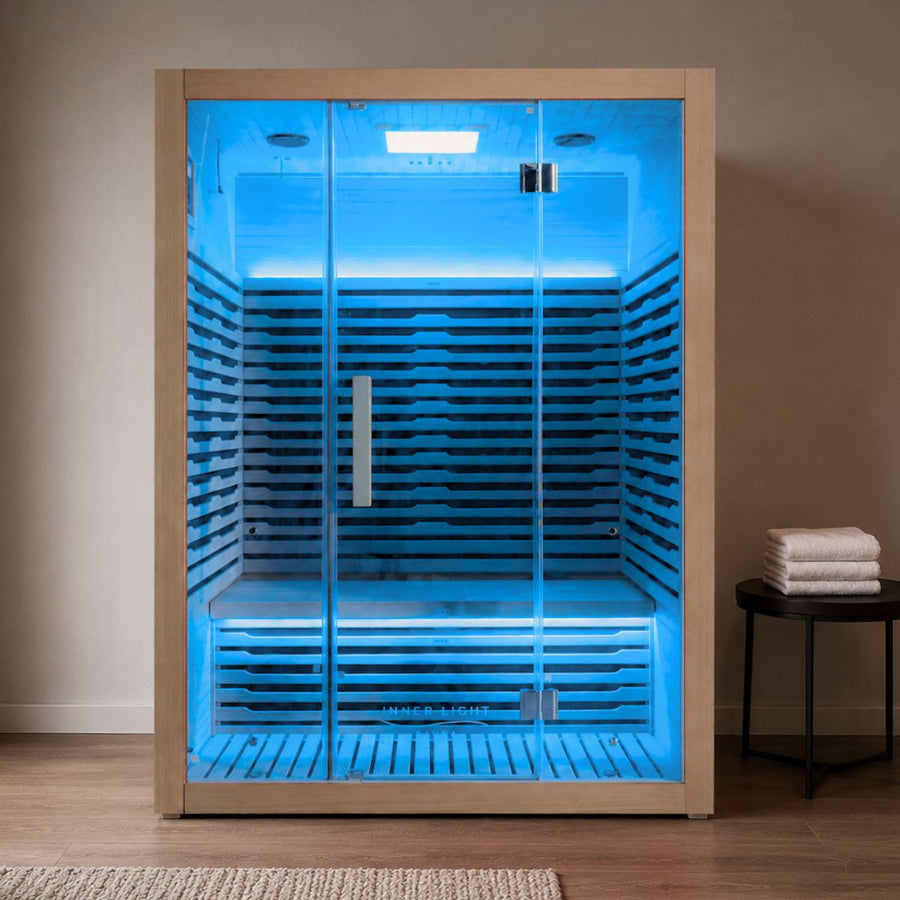
Select individual colours manually
or -
Press Scroll to cycle automatically through colours.
5. Scheduled Sessions
Use this for automatic daily routines.
Example:
-
You want a 45-minute session at 6:00 AM.
-
Set:
-
Start time: 6:00 AM
-
Desired temperature
-
Select days (e.g., Monday–Friday)
-
-
Press Save.
Now your sauna turns on automatically every weekday at 6 AM at your chosen temperature.